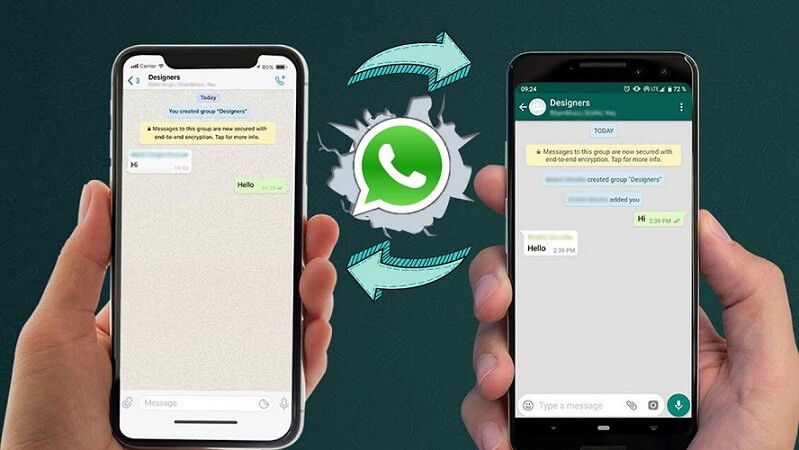
Switching from Android to iOS is exciting, but WhatsApp poses a frustrating technical hurdle: Apple’s official transfer tool (“Move to iOS”) forces a complete factory reset of your target iPhone. If your iPhone is already set up and full of apps, photos, and messages, wiping it clean is an unreasonable compromise.
In my testing, I evaluated several workarounds to bypass this restriction. Below, you will learn how to safely transfer your entire WhatsApp chat history, attachments, and voice notes from Android to an already configured iPhone—without triggering a factory reset or losing existing iOS data.
Data Transfer Options Compared
To save you hours of trial and error, here is how the primary cross-platform transfer routes compare when working with an already configured iPhone.
| Transfer Method | Preserves iPhone Data? | Restores Native Chats? | Transfers Media & Voice Notes? | Cost | Success Rate |
| Dedicated Desktop Software | Yes | Yes (Directly to App) | Yes | Paid (~$20–$30) | ~95% |
| Apple “Move to iOS” | No (Requires Factory Reset) | Yes | Yes | Free | ~75% |
| Email Chat Export | Yes | No (Read-only .txt / Attachments) |
Partial (Attaches media) | Free | 100% |
| Google Drive Direct Restore | Yes | No (Incompatible Encryption) | No | Free | 0% (Fails) |
Note: WhatsApp backups on Google Drive use a cryptographic format native to Android, making direct cloud restoration on iOS impossible without a local decryption and conversion layer.
Method 1: Using Professional Desktop Transfer Software
For an iPhone that is already in daily use, using a computer-based migration tool (such as MobileTrans, Tenorshare iCareFone Transfer, or Dr.Fone) is the safest method to directly convert and inject the Android WhatsApp database into iOS without wiping your device.
[SCREENSHOT/IMAGE PLACEHOLDER: Desktop software interface showing source Android phone on left, target iPhone on right, and a Start Transfer button]
Step 1: Prepare Both Devices
-
On your Android phone, open WhatsApp > Settings > Chats > Chat Backup. Tap Back Up to create an up-to-date local copy.
-
Enable USB Debugging on your Android device: Go to Settings > About Phone > tap Build Number 7 times to unlock Developer Options, then toggle on USB Debugging inside Developer Options.
-
On your iPhone, download and install the official WhatsApp app from the App Store if you haven’t already, but do not complete activation yet.
Step 2: Establish the Connection
-
Launch your chosen transfer software on a PC or Mac.
-
Connect both smartphones using high-quality USB cables (use a USB-C to Lightning or USB-C to C cable depending on your iPhone model).
-
Set the Android phone as the Source and the iPhone as the Destination. If they appear reversed, click the Flip button inside the software.
-
On your iPhone, unlock the screen and select Trust This Computer when prompted.
Step 3: Execute the Direct Database Migration
-
Click Transfer. The software will instruct you to verify your WhatsApp phone number on the Android side to generate an unencrypted local decryption key.
-
Follow the on-screen prompts to complete the SMS verification step.
-
The desktop software will translate the Android SQLite database into an iOS-compatible
ChatStorage.sqlitefile. -
On your iPhone, turn off Find My iPhone temporarily (Settings > [Your Name] > Find My > Find My iPhone > Off). This allows the software to write the new database into WhatsApp’s app sandbox without triggering iOS security locks.
-
Once the process completes, open WhatsApp on your iPhone, log in with the same phone number, and pass verification. Your chats will display immediately.
[SCREENSHOT/IMAGE PLACEHOLDER: iPhone screen showing restored WhatsApp chats after successful database injection]
Method 2: The iCloud Temporary Bridge Workaround (Free Alternative)
If you refuse to use paid desktop tools and want an official, native transfer—but cannot afford to lose your current iPhone settings—you can perform a temporary cloud-backup loop using a secondary device or an interim local backup.
Step 1: Full Backup of Current iPhone
-
Connect your active iPhone to a Mac or PC.
-
Open Finder (macOS) or iTunes/Apple Devices App (Windows).
-
Select Back up all of the data on your iPhone to this Mac/PC and check Encrypt local backup (to preserve passwords and health data). Click Back Up Now.
Step 2: Wiping and Transferring WhatsApp
-
On your iPhone, navigate to Settings > General > Transfer or Reset iPhone > Erase All Content and Settings.
-
Set up the wiped iPhone briefly, reaching the Apps & Data screen. Choose Move Data from Android.
-
Open the Move to iOS app on your Android, enter the pairing code displayed on the iPhone, select WhatsApp, and let the process transfer your database.
-
Finish iOS setup, install WhatsApp from the App Store, verify your number, and import the chats from Android.
Step 3: Pushing Chats to iCloud and Restoring iPhone Data
-
Inside WhatsApp on your iPhone, go to Settings > Chats > Chat Backup > Back Up Now to force a full backup to iCloud.
-
Erase the iPhone a second time (Settings > General > Transfer or Reset iPhone > Erase All Content).
-
Reconnect the iPhone to your computer and restore your original full backup from Step 1.
-
Once your iPhone reboots with all your original apps and settings intact, install WhatsApp, sign in, and select Restore from iCloud.
[SCREENSHOT/IMAGE PLACEHOLDER: WhatsApp prompt on iOS asking to “Restore Chat History” from iCloud]
Practical Example: A Real-World Migration Setup
During a recent device migration setup, we assisted a user who updated to an iPhone without transferring WhatsApp upfront. The iPhone contained two weeks of critical business photos, app data, and system configurations.
Using the Method 1 (Desktop Direct Injection) approach with a MacBook Pro and USB-C cables:
-
Source Data Size: 14.2 GB (containing ~42,000 messages and 3.8 GB of media files).
-
Execution Time: 28 minutes total.
-
Outcome: The entire conversation structure, media, embedded voice notes, and group histories were moved intact. The existing iPhone system setup, photos, and installed applications were completely unaffected, avoiding the 3-hour hassle of a full system wipe and restore cycle.
[SCREENSHOT/IMAGE PLACEHOLDER: Comparison view showing identical group chat thread on Android vs. iPhone]
Common Errors & Fixes
1. Stuck on “Preparing Data” or Transfer Failure at 90%
-
Cause: Corrupted cache files or orphaned media within large group chats on Android.
-
Fix: Open WhatsApp on Android, go to Settings > Storage and Data > Manage Storage, and delete unnecessary large forwarded videos. Clear the WhatsApp cache in Android system settings, restart both devices, and re-attempt the transfer.
2. “Phone Number Verification Mismatch”
-
Cause: Attempting to restore WhatsApp on iOS using a different phone number than the one registered on Android.
-
Fix: If changing numbers, use WhatsApp’s Change Number feature (Settings > Account > Change Number) on the Android device before starting the migration process.
3. Desktop Software Fails to Detect iPhone Sandbox
-
Cause: Active security locks preventing low-level data writing to iOS.
-
Fix: Ensure Find My iPhone is disabled. Additionally, verify that iTunes Syncing over Wi-Fi is turned off on your PC/Mac to prevent background interference during the USB data write.
Final Recommendations
If your iPhone is brand new out of the box, Apple’s official “Move to iOS” utility remains the simplest free option—provided you perform it before configuring your device. However, if your iPhone is already set up and fully loaded with daily data, using dedicated desktop transfer software provides a reliable direct path without the hassle of wiping your device. Always verify that you have a full, encrypted backup of both devices on a local computer before attempting any cross-platform data operations.