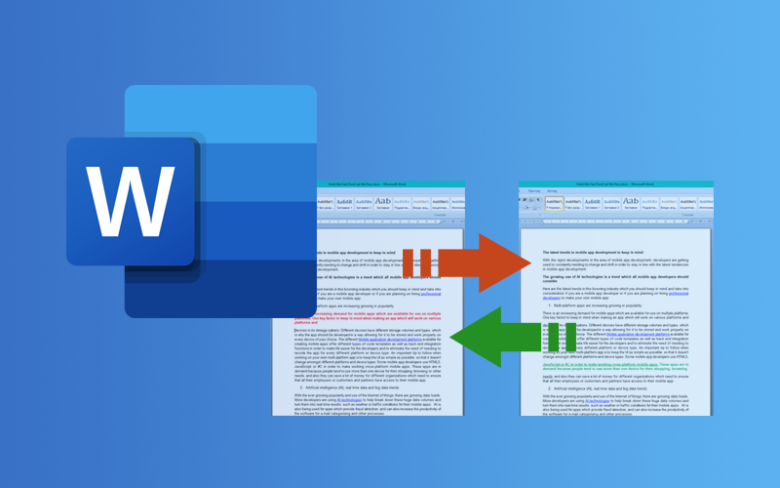
It is 8:30 PM, and you are finalizing a high-stakes commercial contract, a corporate partnership agreement, or a quarterly financial report. The counterparty emails you their latest draft with a casual note: “Attached is the revised version. We only cleaned up a few minor typos in Section 3.”
You open the new attachment. It is 65 pages long. It looks virtually identical to your previous draft.
Do you trust their email and sign on the dotted line?
If you do, you are playing Russian roulette with your business, legal, or academic reputation. Buried deep on page 42, a single word might have been swapped—turning a non-binding “reasonable efforts” clause into a strictly enforceable “best efforts” guarantee. Or worse, an entire sub-clause capping financial liability may have quietly vanished between paragraphs.
Manual document comparison—reading two multi-page documents side by side with your eyes glued to two monitor screens—is a recipe for disaster. Human eyes suffer from cognitive fatigue, and the human brain naturally engages in “change blindness,” subconsciously auto-correcting and smoothing over subtle word substitutions.
To protect yourself and save hours of frustrating reading, you need automated, reliable tools that perform surgical document comparisons. Whether you need to compare two PDF contracts, track revisions across Microsoft Word files, inspect changes in spreadsheets, or use artificial intelligence to uncover subtle shifts in meaning, online document comparison tools can highlight every difference in seconds.
In this comprehensive guide, you will learn the exact methods to compare two documents online, understand the difference between text diffing and semantic analysis, deploy the best free and professional tools, and avoid dangerous security pitfalls when handling sensitive files.
The Hidden Dangers of Manual Document Comparison
Before exploring automated tools, it is vital to understand why traditional human review fails so consistently when evaluating document revisions. Knowing where errors hide helps you configure your comparison tools with precision.
1. Cognitive Fatigue and Change Blindness
Psychological studies into human reading behavior show that when people read familiar material, the brain stops decoding individual letters and words sequentially. Instead, it reads in saccadic jumps, predicting the next words based on contextual expectation. If a contract counterparty changes “Vendor shall not be liable for incidental damages” to “Vendor shall be liable for incidental damages,” a tired human reviewer skimming late at night frequently reads right past the missing word “not,” because their brain expects the standard boilerplate phrasing.
2. The “Micro-Revision” Trap
Some of the most dangerous revisions involve microscopic changes that produce massive operational consequences:
- Punctuation Shifts: A misplaced or removed comma can completely alter the interpretation of a contractual list or statutory rule.
- Modal Verb Swaps: Replacing “may” with “shall,” or “will” with “might,” alters optional courtesies into mandatory legal obligations.
- Adjusted Numerical Thresholds: Subtle changes to delivery grace periods (e.g., from 30 business days to 30 calendar days) or payment milestones ($50,000 vs. $500,000) that blend into dense paragraphs.
3. Structural Reorganization
Clever counterparties sometimes mask substantial edits by moving entire paragraphs from one section to another. A manual reviewer checking Section 5 might notice that a clause is gone and assume it was negotiated away, completely missing the fact that it was quietly inserted into Section 12 under an unrelated heading like “Miscellaneous.”
Understanding the Three Levels of Document Comparison
Not all comparison tasks require the exact same methodology. Depending on whether you are auditing code, reviewing a legal agreement, or analyzing a rewritten policy memo, you will rely on one of three distinct comparison paradigms:
| Comparison Level | Primary Technology | What It Detects | Best Use Case |
| Level 1: Raw Text & Character Diffing | String matching algorithms (e.g., Myers Diff) | Exact character insertions, deletions, and whitespace modifications | Code files, plain text, configurations, raw markdown |
| Level 2: Visual & Structural Redlining | Object-based PDF/Word parsing & pixel overlays | Text changes, moved paragraphs, altered tables, font styling, deleted images | Legal contracts, PDF agreements, brochures, formal reports |
| Level 3: Semantic & Contextual Analysis | Large Language Models (LLMs) & NLP | Meaning shifts, altered liabilities, changed obligations despite complete rewording | Paraphrased drafts, policy updates, translated documents |
Understanding these three tiers prevents you from using the wrong tool for the job. A raw text diff tool will drown you in false positives if fonts change, whereas an AI model might overlook a swapped punctuation mark that a character-level diff would flag instantly.
Method 1: Built-In Cloud Document Comparison (Google Docs & Microsoft 365)
If your documents are in standard word processing formats (such as .docx or native cloud documents), you do not need to upload your files to obscure third-party websites. Both Google Docs and Microsoft 365 offer enterprise-grade document comparison engines built directly into their cloud suites.
How to Compare Documents in Google Docs
Google Docs features one of the cleanest, most accessible document comparison engines available online. It generates a third, dedicated comparison file that represents differences using standard Suggested Edits.
Step-by-Step Execution:
- Open your web browser, navigate to Google Drive, and open the original (older) version of the document in Google Docs.
- In the top toolbar, click Tools and select Compare documents from the dropdown menu.
- A dialog box will appear titled Compare Documents. Click the folder icon next to Select comparison document.
- Browse your Google Drive or click the Upload tab to upload the revised (newer) version from your local computer.
- In the field labeled Attribute differences to, enter the name of the person or party responsible for the changes (e.g., “Counterparty Legal Team” or “Marketing Edits”). This label will appear on all margin callouts.
- (Optional) Check the box for Include comments from the comparison document if you wish to review margin notes.
- Click the blue Compare button.
- Once Google Docs finishes analyzing the files, click Open.
How to Read the Results:
Google Docs opens a brand-new file titled “Comparison of [Document A] and [Document B]”.
- Additions: Highlighted in green text with a solid underline.
- Deletions: Displayed in magenta or pink text with a horizontal strikethrough.
- Margin Cards: Every single modification is itemized in the right margin, allowing you to click the Checkmark (Accept) or X (Reject) on each change individually.
How to Compare Documents in Microsoft Word for the Web and Desktop
Microsoft Word’s comparison engine is the global gold standard for formal legal redlines (traditionally known as a legal blackline).
Step-by-Step Execution:
- Open Microsoft Word.
- Navigate to the Review tab on the main ribbon.
- In the Compare group, click the Compare button and select Compare two versions of a document (legal blackline).
- A split-window dialog box will appear:
- On the left under Original document, browse and select your baseline file.
- On the right under Revised document, browse and select the updated file.
- Set the label you want attached to the revisions in the Label changes with field.
- Click the More >> button at the bottom of the dialog box to customize your audit criteria:
- Check or uncheck categories: Moves, Comments, Formatting, Case changes, White space, Tables, and Headers/Footers.
- Pro Tip: If you only care about substantive wording, uncheck Formatting and White space. This eliminates thousands of annoying notifications triggered by font adjustments or extra paragraph returns.
- Click OK.
How to Read the Results:
Word generates a sophisticated four-pane workspace:
- Left Sidebar: A detailed Revisions Pane listing every insertion, deletion, and moved block with an exact numerical count.
- Center Pane: The merged Compared Document displaying tracked changes.
- Right Panes (Top & Bottom): Displays the Original Document and Revised Document simultaneously, scrolling synchronously with your central redline view.
Method 2: Dedicated Online PDF and Multi-Format Diffing Tools
When your files are locked in PDF format, scanned from paper, or created in slide software like PowerPoint, word processing tools cannot directly compare them. In these scenarios, dedicated online diffing platforms are essential.
1. Draftable Online (The Undisputed King of Visual Redlines)
Draftable is widely regarded across the legal and corporate sectors as the premier online tool for comparing complex documents.
- Supported Formats: PDF, Microsoft Word (
.docx,.doc), and PowerPoint (.pptx). - Core Advantage: Flawless side-by-side synchronized scrolling. As you scroll through the original document in the left pane, the right pane scrolls in exact lockstep, keeping corresponding sections aligned even if paragraphs were inserted or removed.
- Visual Distinction:
- Red / Strikethrough: Content present in the original but deleted in the revision.
- Green / Underline: Content added to the revision.
- Blue: Content that has moved or undergone significant formatting changes.
How to Use Draftable Online:
- Go to the free web interface at
draftable.com/compare. - Drag and drop your original file into the left box labeled Drop older file here.
- Drag and drop your revised file into the right box labeled Drop newer file here.
- Click the purple Compare button.
- Within 5 to 15 seconds, the web viewer loads the interactive redline. You can toggle between a side-by-side view or a single merged page view, and use the navigation arrows in the bottom bar to jump instantly from one change to the next.
2. Diffchecker (Best for Plain Text, Code, Spreadsheets, and Images)
When you do not want to upload entire files and simply need to compare two pasted blocks of text, email drafts, or code snippets, Diffchecker is the fastest solution.
- Supported Formats: Raw text, PDF, Word, Excel (
.xlsx,.csv), images, and folders. - Core Advantage: Character-level granularity. Many document tools only highlight full words; Diffchecker highlights the exact letters or punctuation marks that changed within a word (e.g., catching if “300” was changed to “3000” or if “licence” was Americanized to “license”).
How to Use Diffchecker:
- Navigate to
diffchecker.com. - Select your mode from the top bar: Text, PDF, or Excel.
- Paste the original text into the left window and the modified text into the right window (or upload files).
- Click Find Difference.
- Use the visual slider to inspect changes, and click the split/unified toggle to view differences side-by-side or combined linearly.
3. Adobe Acrobat Online (Compare Tool)
Adobe invented the PDF standard, and its cloud suite provides an authoritative comparison tool specifically engineered for digital and scanned PDFs.
- Best For: Auditing published financial filings, graphic brochures, and signed contracts.
- Standout Feature: Adobe’s engine generates an executive Compare Report. This summary sheet provides a high-level breakdown: total number of text replacements, additions, deletions, visual graphic updates, and annotation changes.
- How to Access: Navigate to Adobe Acrobat Online’s Compare PDF web tool, upload your two PDFs, and let Adobe generate an interactive markup with a downloadable summary audit trail.
Method 3: Using Generative AI for Semantic and Clause-by-Clause Comparison
Traditional comparison software relies on deterministic algorithms: if the letters match, the software flags no change; if the letters differ, it flags a change.
However, modern business negotiations often involve sophisticated rewriting where the wording changes completely, but the underlying obligation remains identical—or conversely, the wording looks nearly identical, but the legal meaning is fundamentally inverted.
This is where frontier artificial intelligence models (such as Claude 3.5 Sonnet, ChatGPT Plus with GPT-4o, and Google NotebookLM) excel. AI does not merely count characters; it interprets semantic intent.
When to Use AI Over Traditional Diff Tools
- Overcoming Cosmetic Rewrites: When a counterparty completely rewrites a policy document using synonyms, a standard diff tool highlights the entire page in red and green, creating useless visual noise. AI can summarize: “Sections 1 through 4 were rewritten for clarity, but the underlying payment and delivery schedules remain identical.”
- Detecting Subtle Liability Shifts: AI can analyze whether changes in warranty language shift risk from the vendor to the client.
- Reconciling Restructured Documents: When clauses are moved, split into bullet points, or merged into appendices.
The Master “Contract & Policy Delta” AI Prompt
To perform an AI comparison, upload both documents (or paste the two competing versions) into your AI tool and deploy this structured prompt:
You are an expert corporate legal auditor and senior contract analyst.

I have provided two versions of a document: [Document A - Original] and [Document B - Revised].

Your objective is to conduct a forensic, clause-by-clause comparative analysis and identify all substantive differences between the two texts. Ignore superficial phrasing changes, formatting tweaks, and punctuation updates unless they directly alter operational or legal meaning.

Please format your report into the following four sections:

### 1. Executive Summary of Changes
Provide a concise 3-to-4 bullet point overview summarizing the overarching themes of the revisions (e.g., increased liability exposure, shortened timelines, new compliance hurdles).

### 2. Substantive Policy & Contractual Modifications
Provide a detailed breakdown of all meaningful revisions. For each change, structure your response as follows:
- **Clause / Section Affected**: [Name or Number]
- **Original Wording (Document A)**: "[Direct quote]"
- **Revised Wording (Document B)**: "[Direct quote]"
- **Operational & Legal Impact**: Explain exactly how this modification shifts risk, costs, obligations, or timelines.

### 3. Numerical & Threshold Shifts
Provide a Markdown table highlighting all altered financial figures, interest rates, notice deadlines, grace periods, or caps:
| Metric / Parameter | Original (Doc A) | Revised (Doc B) | Impact Analysis |

### 4. Omissions and Deletions
List any vital clauses, warranties, or protections that were present in Document A but have been completely eliminated from Document B.
By constraining the AI to quote original and revised excerpts directly alongside an impact analysis, you eliminate generic fluff and receive an actionable executive decision brief.
Comparing Complex Formats: Spreadsheets, Scans, and Presentations
Comparing standard text files is relatively simple. However, real-world business documents frequently involve complex formatting structures that break basic diffing engines. Here is how to handle the most challenging formats:
1. Financial Spreadsheets (Excel & CSV)
Comparing spreadsheets is notoriously tricky because an altered number could be the result of a hardcoded value change, a modified formula, or a shifted row.
- The Best Online Method: Use Diffchecker Excel or CoWork Sheet Diff.
- How It Works: These tools parse spreadsheets grid-by-grid rather than as linear text. If someone inserted a new row at Row 14, the software recognizes the row offset and does not falsely flag every subsequent row on the sheet as a mismatch.
- Native Excel Solution: If you have Microsoft Office Professional, launch the built-in standalone utility titled Spreadsheet Compare. It scans two
.xlsxfiles and outputs an itemized log of formula changes, cell value updates, macro alterations, and structural layout adjustments.
2. Scanned Paper Documents and Flat PDFs
If someone prints a contract, signs it with a pen, scans it with an office photocopier, and emails you the resulting PDF, the file contains zero digital text—it is simply a collection of flat images.
- The Fix: You cannot run a text comparison on a flat image scan without first running Optical Character Recognition (OCR).
- Step 1: Run the scanned PDF through an OCR engine (such as Adobe Acrobat Pro, Apple Preview, or an online OCR tool) to regenerate the invisible digital text layer.
- Step 2: Highlight a sentence to confirm text can now be selected.
- Step 3: Upload the OCR-processed PDF to Draftable or Google Docs for comparison.
3. Slide Decks and Visual Presentations (PowerPoint)
In presentation decks, content changes are often spatial rather than textual: a chart bar might be shortened, a bullet point relocated, or a disclosure footnote shrunk in size.
- The Best Tool: Draftable Online natively supports
.pptxuploads. It displays slides side-by-side, drawing colored boundary boxes around modified graphic elements, replaced images, and updated text blocks.
Data Privacy, Security, and Confidentiality: The Essential Safety Checklist
Before you drag and drop an employment agreement, an acquisition memo, or a proprietary technical blueprint into any free online comparison tool, you must understand the severe data privacy risks involved.
+------------------------------------------------------------------------+
|                 ONLINE DOCUMENT COMPARISON PRIVACY AUDIT               |
+------------------------------------------------------------------------+
|  SAFE FOR PUBLIC WEB TOOLS        |  STRICTLY PROHIBITED               |
+------------------------------------------------------------------------+
|  - Public whitepapers & blogs     |  - Unredacted customer PII         |
|  - Published regulatory rules     |  - Proprietary financial statements|
|  - Open-source software licenses  |  - Active M&A acquisition briefs   |
|  - Standard academic articles     |  - Unreleased patents & IP drafts  |
|  - General website privacy policies| - Confidential legal settlements   |
+------------------------------------------------------------------------+
The Three Critical Security Questions
Whenever evaluating an online comparison tool, check its privacy policy for these three criteria:
- Server Retention Policy: Does the vendor delete your uploaded files immediately after rendering the comparison, or are files stored on cloud servers for 30 days? Reputable tools like Draftable state that uploaded files are encrypted in transit and purged automatically after comparison sessions expire.
- AI Model Training Clauses: If you use an online AI tool to compare documents, ensure that your data is not utilized to train public foundation models. Free consumer tiers of chat models often default to training on user data unless you toggle data-sharing controls off.
- Jurisdictional Compliance: If you operate in regulated industries (healthcare, banking, legal), uploading client data to an unauthorized third-party web server may constitute an immediate violation of GDPR, HIPAA, or industry confidentiality rules.
Safe Alternatives for Confidential Documents
When handling strictly classified or legally sensitive materials, bypass browser-based upload tools entirely and use local, offline desktop comparison utilities:
- WinMerge (Windows): A powerful, free, open-source file and folder comparison tool that runs 100% locally on your machine. Zero data ever leaves your hardware.
- Beyond Compare (Windows, macOS, Linux): The professional benchmark for offline data comparison, handling text, PDF, binary data, and directory trees with complete data sovereignty.
- Enterprise Cloud Workspace: Keep the comparison inside your corporate-managed Google Workspace or Microsoft 365 tenant, where your organization’s enterprise data protection agreements apply.
Frequently Asked Questions (FAQ)
Can I compare a Word document (.docx) directly against a PDF file?
Yes. Professional diffing tools like Draftable Online and desktop applications like Microsoft Word allow cross-format comparison. Draftable lets you upload a .docx file in the left pane and a .pdf file in the right pane, automatically normalizing the text layers and highlighting additions and deletions seamlessly. If using Microsoft Word, save the PDF as a .docx file first (or let Word auto-convert it upon opening), then execute standard document comparison.
Why does my online comparison tool flag the entire page as changed when only one word was edited?
This issue, known as “cascading false positives,” occurs when a comparison tool misinterprets structural formatting. If a user changed the document’s line spacing, margins, or font family, or inserted a hard page break, a basic comparison engine may conclude that every single subsequent line has moved to a new coordinate, marking the entire file in red and green. To prevent this, use advanced tools (like Microsoft Word or Draftable) and toggle the option to Ignore formatting and whitespace changes.
How can I compare two scanned physical documents that have no digital copy?
To compare two physical paper documents, scan both documents to PDF format at a minimum resolution of 300 DPI. Next, run an Optical Character Recognition (OCR) program (such as Adobe Acrobat Pro or an open-source OCR tool like Tesseract) to create searchable digital text layers. Once both scanned PDFs possess selectable text, you can upload them to any online comparison tool to identify wording changes.
Is it safe to upload confidential legal contracts to free online comparison websites?
Generally, no. Free online comparison websites frequently log uploads on temporary servers and may lack end-to-end encryption or strict zero-data-retention guarantees. If you are comparing non-disclosure agreements (NDAs), trade secrets, healthcare data, or sensitive financial records, either sanitize and redact personal details before uploading, use enterprise-tier subscriptions with contractual privacy guarantees, or use local, offline utilities like WinMerge or Beyond Compare.
What is the difference between a “Legal Blackline” and a standard document diff?
A standard document diff simply highlights exact character or word mismatches between two files. A Legal Blackline is a specialized, legally recognized redline standard designed for contracts and legislation. It not only highlights added and deleted text, but also tracks moved text blocks, distinguishes between substantive wording changes and cosmetic font adjustments, and generates an auditable revision log that attorneys and executives can use to review contractual risk systematically.
Never Sign Blindly Again
In modern business, education, and legal governance, trust is an essential virtue—but verification is an absolute necessity. Relying on casual email assurances or attempting to visually spot differences across dozens of densely written pages will eventually lead to missed obligations, costly disputes, or contractual liabilities.
By integrating automated comparison tools into your routine workflow, you take complete control of your document management. Use Google Docs or Microsoft Word for seamless day-to-day redlines, deploy Draftable or Adobe Acrobat for visual PDF audits, leverage AI assistants for deep semantic analysis of tricky contract clauses, and keep offline utilities on hand for strictly confidential files.
Taking two minutes to run a digital comparison before signing or publishing ensures you always know exactly what changed—giving you total clarity and complete peace of mind.